Amber Settings
One settings window for the suite. A page appears for each program you have installed: Ambrosia, the kat800 terminal, Amberlin and its services. It keeps no configuration of its own.
- Package
- amber-settings
- Licence
- Amber Source License, GPL-3.0-or-later from 1 May 2033
- Built with
- D-BusGTK 4Odin
- Part of
- Amberlin AI
- Source
- amber-settingsMost are private for now; access is free on request.
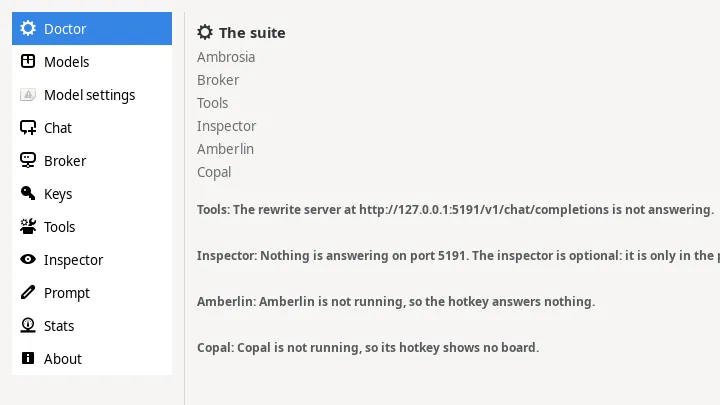
Amber Settings is the one settings window of the suite. It shows a page for each program you have installed and none for the ones you have not: install Ambrosia alone and the window has Ambrosia’s page; add the kat800 terminal and a Terminal page appears; add Amberlin and its pages follow. Four pages are always there: Doctor, Keys, Stats and About.
sudo apt install amber-settingsYou rarely install it by name. Ambrosia and Amberlin depend on it, kat800 and Copal recommend it, and it depends on none of them, so installing Ambrosia brings this window and nothing of the assistant.
Doctor
The window opens on Doctor, which checks each installed part in turn: running or not, which version, which port. Where something is wrong it offers a button, Start for a part that is not running or Open page for one that needs a setting. Opening the window starts nothing.
Ambrosia
With Ambrosia installed:
- Panel: keep it open when it loses focus, keep it on top, open it centred, activate rows with a single click, paste into the window you came from, and the area it opens on.
- Ambrosia: record mouse selections as well as copies, load at system startup, show the tray icon.
- Search areas: a switch for Recent, and for Files and Docs when the indexer is installed. The other areas follow what is installed: Terminal comes with kat800, Notes with Amberlin or kat800.
- Clear entries: per area, everything or the last 24, 12, 6, 3 or 1 hours.
- Activity: how many entries each area gained per hour, day, week, month and year, the current stretch drawn over the one before.
- Files and documents: the folders the file finder lists, what to leave out, the document index, when it may run, and whether it may build its meaning index on a machine without a suitable graphics card.
Ambrosia keeps every one of these values itself. The page reads and sets them over the session bus.
Terminal
With kat800 installed, the basics of the terminal: the
editor’s font, the cursor, scrollbars, copy on select, scrolling, scrollback,
the bell, the shell and what happens when it exits, the tray, restoring
commands, the Files panel and where links open. Save writes them into
kat800’s own config.toml and keeps every other key in it; comments in the file
are not kept. kat800 reads the file when it starts. Open config file opens
it in kat800’s editor for the rest.
Amberlin
With Amberlin and its services installed:
- Models: download, pause, use and remove language models. The broker does the downloading; the page shows the progress.
- Model settings: tools, tool rounds per answer, context length, answer length and thinking, per model.
- Chat: the voice (any of Kokoro’s 64, searchable), rate and volume, the hotkey, the microphone and hands-free.
- Broker: where the language model runs, and a remote server if you want one.
- Tools: a switch per tool, and the folders the model may read.
- Inspector and Prompt for the persona file.
Keys, Stats, About
Keys lists the API keys the suite keeps in the desktop keyring, by app and host, and never shows one. Katai, kat800’s assistant, can keep its key there. Stats is a live meter of the machine, where you can watch video memory come back when the models unload.
The window owns no configuration. Every page reads and writes the settings of the program it describes, over the session bus or in that program’s own file, so there is one place for each setting, and editing the file by hand works just as well.
Open it from the menu, from Ambrosia’s menu with Settings, or from Amberlin’s
tray menu with Preferences. amber-settings --page ambrosia opens it on a page.
Install
Once the Amber Linux archive is set up (it takes three commands, on the packages page):
sudo apt install amber-settings